
Harbor is widely recognized as the CNCF-graduated standard for open-source container registries. It is powerful, feature-rich, and trusted by thousands of organizations. However, its default AWS integration relies on a legacy pattern that modern security teams increasingly reject: Static Secrets.
In strictly governed AWS environments, storing long-lived credentials in Kubernetes Secrets represents a “Secret Zero” vulnerability. In this post, I share how I modernized Harbor’s authentication layer to use AWS RDS IAM Authentication and IAM Roles for Service Accounts (IRSA), shifting security from a manual burden to an automated guarantee.
Background
The ‘Secret Zero’ Vulnerability
We have all seen this in our clusters: a secret containing a long-lived AWS_ACCESS_KEY_ID for S3 access, or a hardcoded master password for a database connection string.
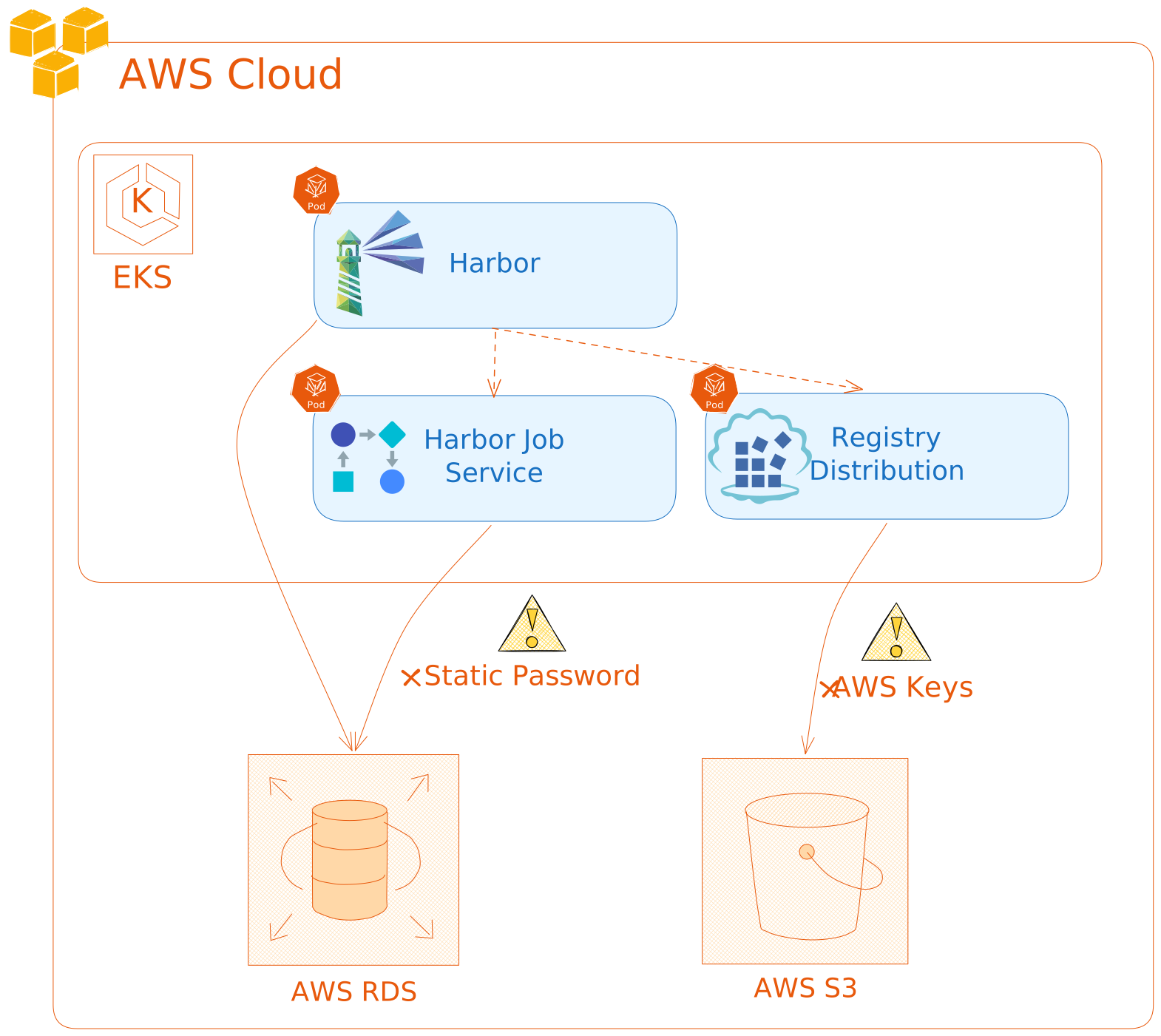
Before (Legacy Flow): The system relies on static passwords passed via config strings both for RDS and S3 access, creating significant rotation and leakage risks.
While functional, this approach requires manual key rotation and managing complex secret lifecycles. If these secrets are compromised, your entire artifact storage backend is exposed.
The Roadblocks: Why Wasn’t This Solved Before?
When we investigated modernizing this flow, we identified two primary technical gaps in the upstream Harbor project:
- Missing Database Logic (Issue #12546): Harbor Core lacked the internal logic required to request an AWS RDS signed token instead of a standard password.
- Lack of IRSA Support (Issue #12888): The Harbor components did not natively support
AssumeRoleWithWebIdentity, meaning they couldn’t exchange a Kubernetes ServiceAccount token for AWS temporary credentials.
The Solution: Dynamic Cloud-Native Identity
We refactored Harbor to leverage ephemeral identity. By patching the core Go codebase and upgrading the internal distribution engine to v3, we enabled a completely keyless architecture.

After (The Modern Flow): Harbor components dynamically assume roles and request ephemeral tokens from AWS STS, removing the need for static credentials entirely.
1. Database: The Code Fix & The 15-Minute Wall
Harbor’s core components connect to PostgreSQL using the pgx driver. By default, this driver expects a static password. We refactored the connection logic in src/common/dao/pgsql.go, but a significant challenge emerged during implementation: IAM tokens expire every 15 minutes.
Standard connection pools establish a connection at startup, but once that initial token expires, any new connection attempt causes the application to crash.
I solved this by implementing a beforeConnectHook in the pgx driver. This ensures the application requests a fresh cryptographic token from AWS every time a new connection is established in the pool.
// src/common/dao/pgsql.go

// Define the Hook Function to handle ephemeral token refreshing
beforeConnectHook := func(ctx context.Context, cfg *pgx.ConnConfig) error {
    // 1. Request a fresh, signed token from AWS RDS Utilities
    token, err := getIAMToken(p.host, p.port, p.usr, region)
    if err != nil {
        log.Errorf("IAM Auth: Failed to generate token: %v", err)
        return err
    }
    // 2. Inject the temporary token as the connection password
    cfg.Password = token
    log.Debugf("IAM Auth: Token refreshed for new connection to %s", cfg.Host)
    return nil
}

// 3. Open the DB using the Option pattern to attach the hook
sqlDB := stdlib.OpenDB(*config, stdlib.OptionBeforeConnect(beforeConnectHook))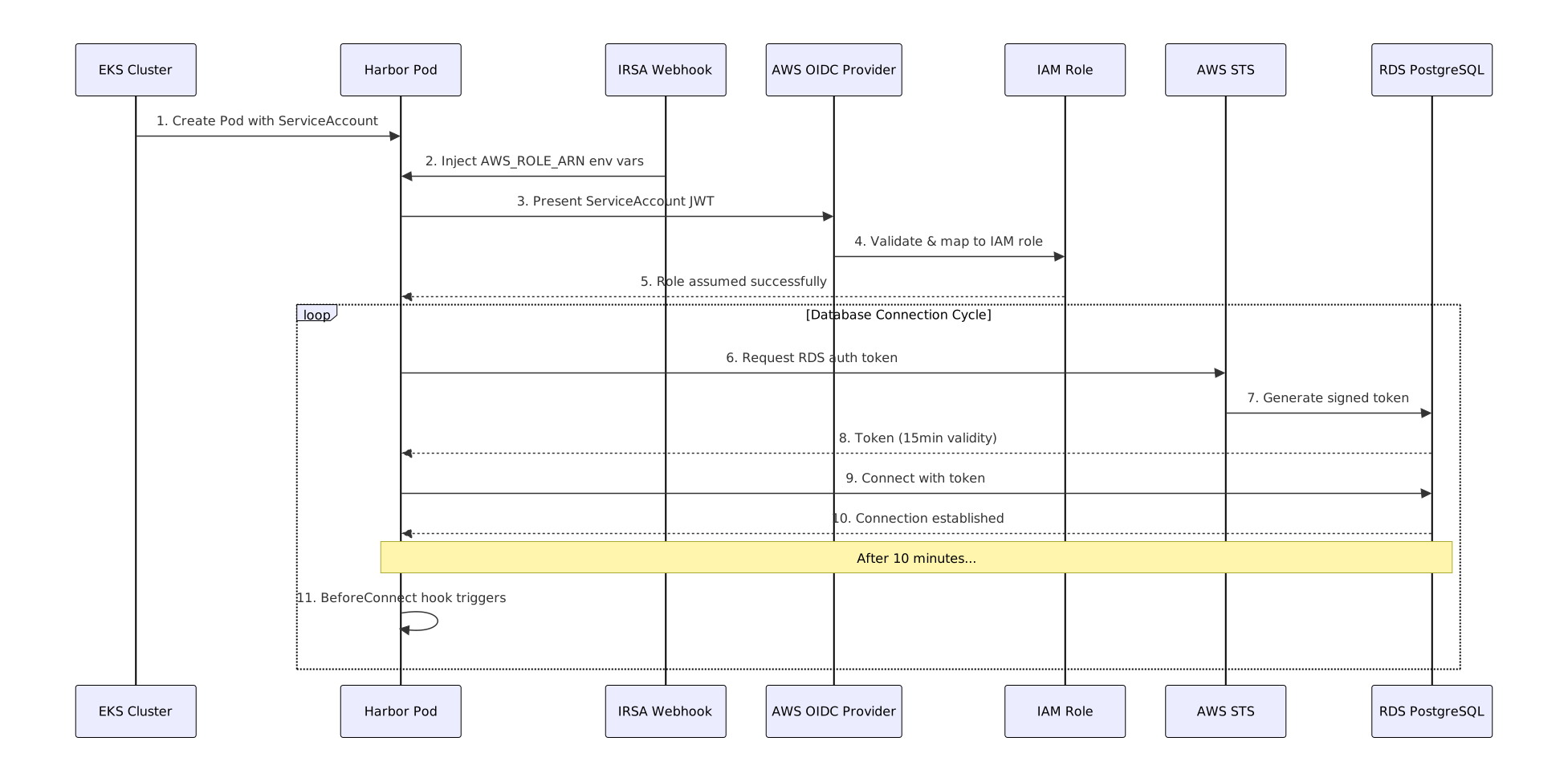
Full sequence: How the Harbor pod creates a ServiceAccount, assumes the IAM role via IRSA, and refreshes RDS auth tokens on every connection cycle using the BeforeConnect hook.
2. Object Storage: Enabling IRSA (Distribution v3)
For S3 access, the Registry binary relies on the upstream docker/distribution. To enable IAM Roles for Service Accounts (IRSA) where a Pod inherits permissions from an AWS IAM Role, we upgraded the build process to use the modern distribution/distribution:v3 libraries.
This upgrade allows the S3 storage driver to automatically detect the AWS_WEB_IDENTITY_TOKEN_FILE projected by Kubernetes, removing the need to define accesskey and secretkey in the Helm values.
How-to: Deploy Harbor Without Static Secrets
You can deploy this hardened version of Harbor today using our verified artifacts and custom images.
Step 1: Pull the Artifacts
We have hosted the patched images and the modern OCI Helm chart in our public registry:
# Pull the patched public images (RDS IAM Auth + S3 IRSA built in)
docker pull 8gears.container-registry.com/8gcr/harbor-core:v2.15.0
docker pull 8gears.container-registry.com/8gcr/harbor-jobservice:v2.15.0
docker pull 8gears.container-registry.com/8gcr/harbor-registry:v2.15.0
docker pull 8gears.container-registry.com/8gcr/harbor-portal:v2.15.0

# Pull the Helm Chart
helm pull oci://8gears.container-registry.com/8gcr/charts/harbor --version 2.0.0
Step 2: Preparing Infrastructure and Policy
Before deploying Harbor, we need to provision the cloud resources. This includes an OIDC-enabled EKS cluster, an S3 bucket for artifact storage, and a PostgreSQL instance with IAM authentication enabled.
2.1. Set Environment Variables
export AWS_REGION="us-east-1"
export AWS_ACCOUNT_ID=$(aws sts get-caller-identity --query Account --output text)
export CLUSTER_NAME="harbor-on-aws-natively-cluster"
export POLICY_NAME="HarborOnAwsNativePolicy"
export BUCKET_NAME="harbor-on-aws-natively-store"
export SA_NAME="harbor-sa"
export NAMESPACE="harbor"
export DB_NAME="registry"
export DB_USER="harbor_iam_user"
export DB_INSTANCE_ID="harbor-db"
export DB_CLASS="db.t3.medium"
2.2. Create EKS Cluster with OIDC
eksctl create cluster \
  --name $CLUSTER_NAME \
  --region $AWS_REGION \
  --version 1.34 \
  --with-oidc \
  --managed \
  --nodegroup-name standard-workers \
  --node-type t3.medium \
  --nodes 2 \
  --nodes-min 1 \
  --nodes-max 4
2.3. Create S3 Bucket
aws s3 mb "s3://$BUCKET_NAME" --region $AWS_REGION2.4. Create IAM Policy
aws iam create-policy \
    --policy-name $POLICY_NAME \
    --policy-document '{
        "Version": "2012-10-17",
        "Statement": [
            {
                "Effect": "Allow",
                "Action": [
                    "s3:GetObject",
                    "s3:PutObject",
                    "s3:DeleteObject",
                    "s3:ListBucket",
                    "s3:GetBucketLocation",
                    "s3:ListBucketMultipartUploads",
                    "s3:AbortMultipartUpload",
                    "s3:ListMultipartUploadParts"
                ],
                "Resource": [
                    "arn:aws:s3:::'"$BUCKET_NAME"'",
                    "arn:aws:s3:::'"$BUCKET_NAME"'/*"
                ]
            },
            {
                "Effect": "Allow",
                "Action": ["rds-db:connect"],
                "Resource": [
                    "arn:aws:rds-db:'"$AWS_REGION"':'"$AWS_ACCOUNT_ID"':dbuser:*/'"$DB_USER"'"
                ]
            }
        ]
    }'
2.5. Create IRSA (IAM Role for Service Account)
eksctl create iamserviceaccount \
  --cluster=$CLUSTER_NAME \
  --name=$SA_NAME \
  --namespace=$NAMESPACE \
  --attach-policy-arn="arn:aws:iam::$AWS_ACCOUNT_ID:policy/$POLICY_NAME" \
  --approve
2.6. RDS Database Setup
We provision a PostgreSQL instance with IAM Database Authentication enabled (--enable-iam-database-authentication).
# Get EKS Network Information

export EKS_VPC_ID=$(aws eks describe-cluster \
  --name $CLUSTER_NAME \
  --region $AWS_REGION \
  --query "cluster.resourcesVpcConfig.vpcId" \
  --output text)

export EKS_CIDR=$(aws ec2 describe-vpcs \
  --vpc-ids $EKS_VPC_ID \
  --region $AWS_REGION \
  --query "Vpcs[0].CidrBlock" \
  --output text)

export SUBNET_IDS=$(aws ec2 describe-subnets \
  --filters "Name=vpc-id,Values=$EKS_VPC_ID" \
  --region $AWS_REGION \
  --query "Subnets[*].SubnetId" \
  --output text)

echo "VPC ID: $EKS_VPC_ID"
echo "CIDR: $EKS_CIDR"

# Create Security Group

export DB_SG_ID=$(aws ec2 create-security-group \
    --group-name harbor-db-sg \
    --description "Security group for Harbor RDS" \
    --vpc-id $EKS_VPC_ID \
    --output text --query 'GroupId' --region $AWS_REGION)

aws ec2 authorize-security-group-ingress \
    --group-id $DB_SG_ID \
    --protocol tcp \
    --port 5432 \
    --cidr $EKS_CIDR \
    --region $AWS_REGION

# Create DB Subnet Group

aws rds create-db-subnet-group \
    --db-subnet-group-name harbor-native-subnets \
    --db-subnet-group-description "Subnets for Harbor RDS" \
    --subnet-ids $SUBNET_IDS \
    --region $AWS_REGION


# Create RDS Instance
aws rds create-db-instance \
    --db-instance-identifier $DB_INSTANCE_ID \
    --db-instance-class $DB_CLASS \
    --engine postgres \
    --engine-version 18.1 \
    --master-username harbor_admin \
    --master-user-password "<yourPassword>" \
    --allocated-storage 20 \
    --db-name $DB_NAME \
    --enable-iam-database-authentication \
    --vpc-security-group-ids $DB_SG_ID \
    --db-subnet-group-name harbor-native-subnets \
    --backup-retention-period 7 \
    --no-publicly-accessible \
    --region $AWS_REGION

echo "Waiting for RDS (5-10 minutes)..."
aws rds wait db-instance-available \
  --db-instance-identifier $DB_INSTANCE_ID \
  --region $AWS_REGION


# Configure IAM Database User

export DB_ENDPOINT=$(aws rds describe-db-instances \
    --db-instance-identifier $DB_INSTANCE_ID \
    --region $AWS_REGION \
    --query "DBInstances[0].Endpoint.Address" \
    --output text)

echo "Database Endpoint: $DB_ENDPOINT"

kubectl create namespace $NAMESPACE

# Connect to RDS (Note: the master password is only needed for this one-time setup.
# Consider using AWS Secrets Manager for the master password in production.)
kubectl run postgres-client --rm -it --image=postgres:18 --restart=Never --namespace=$NAMESPACE --env=PGPASSWORD=<yourPassword> -- psql -h $DB_ENDPOINT -U harbor_admin -d $DB_NAME
Once connected, run the following SQL commands inside PostgreSQL:
CREATE USER harbor_iam_user WITH LOGIN;
GRANT rds_iam TO harbor_iam_user;
GRANT ALL PRIVILEGES ON DATABASE registry TO harbor_iam_user;
GRANT ALL ON SCHEMA public TO harbor_iam_user;
\q
Step 3: Configure values-aws-native.yaml
We configure Harbor to use native AWS authentication. Note that POSTGRESQL_USE_IAM_AUTH is explicitly enabled, the password field is left as a placeholder (it will be ignored by our hook), and the storage credential fields are omitted entirely. The registry inherits permissions directly from the ServiceAccount via IRSA.
# ============================================================
# HARBOR AWS NATIVE CONFIGURATION
# Validated against harbor chart 2.0.0
# Features: RDS IAM Auth + S3 IRSA
# ============================================================

externalURL: "https://harbor.example.com"

# Demo password. For production, use `existingSecretAdminPassword` with a
# Secret from AWS Secrets Manager, external-secrets, or SOPS.
harborAdminPassword: "Harbor12345"

# Ingress off by default so install succeeds without DNS.
# Turn on for real deployments (ALB, nginx, etc).
ingress:
  enabled: false

# Top-level database — the chart renders these into POSTGRESQL_HOST /
# POSTGRESQL_PORT / POSTGRESQL_USERNAME / POSTGRESQL_DATABASE on core & jobservice.
database:
  host: "<YOUR_DB_ENDPOINT>"
  port: 5432
  username: "harbor_iam_user"
  # Required by chart schema, ignored at runtime — the BeforeConnect
  # hook replaces this with an ephemeral IAM token.
  password: "placeholder"
  database: "registry"
  sslmode: "require"

core:
  replicas: 1
  image:
    repository: 8gears.container-registry.com/8gcr/harbor-core
    tag: v2.15.0
  # Point at the IRSA-annotated ServiceAccount.
  serviceAccount:
    create: false
    name: "harbor-sa"
  # extraEnv is what the chart actually injects onto the container.
  # These two variables activate the IAM auth code in pgsql_iam.go.
  extraEnv:
    - name: POSTGRESQL_USE_IAM_AUTH
      value: "true"
    - name: POSTGRESQL_AWS_REGION
      value: "<YOUR_AWS_REGION>"

jobservice:
  replicas: 1
  image:
    repository: 8gears.container-registry.com/8gcr/harbor-jobservice
    tag: v2.15.0
  serviceAccount:
    create: false
    name: "harbor-sa"
  extraEnv:
    - name: POSTGRESQL_USE_IAM_AUTH
      value: "true"
    - name: POSTGRESQL_AWS_REGION
      value: "<YOUR_AWS_REGION>"

registry:
  replicas: 1
  image:
    repository: 8gears.container-registry.com/8gcr/harbor-registry
    tag: v2.15.0
  serviceAccount:
    create: false
    name: "harbor-sa"
  relativeurls: true
  # S3 via IRSA. Do NOT set accesskey/secretkey — leaving them unset
  # makes the AWS SDK fall back to the web-identity token provider.
  config:
    storage:
      s3:
        region: "<YOUR_AWS_REGION>"
        bucket: "<YOUR_BUCKET_NAME>"
        v4auth: true

portal:
  image:
    repository: 8gears.container-registry.com/8gcr/harbor-portal
    tag: v2.15.0

valkey:
  enabled: true

# Off for a minimal IAM smoke test — turn on in production.
trivy:
  enabled: false
exporter:
  enabled: false
Admin password: The tutorial uses a plaintext value for simplicity. For production, set existingSecretAdminPassword to reference a Secret managed by AWS Secrets Manager or a similar backend.
Step 4: Deploy
helm upgrade --install my-harbor \
  oci://8gears.container-registry.com/8gcr/charts/harbor \
  --version 2.0.0 \
  --namespace $NAMESPACE --create-namespace \
  -f values-aws-native.yaml
Step 5: Verify the Deployment
# 1. Pods up
kubectl -n $NAMESPACE get pods

# 2. Confirm RDS IAM auth activated + migration succeeded
kubectl -n $NAMESPACE logs deploy/my-harbor-core --tail=200 \
  | grep -E 'IAM Auth|migrated successfully|self-test'
# Expect:
#   IAM Auth: Enabled for region=... endpoint=...:5432 user=harbor_iam_user
#   IAM Auth: Token generated for database migration
#   The database has been migrated successfully
#   database self-test passed

# 3. S3 IRSA wired to registry pod
kubectl -n $NAMESPACE get pod -l app.kubernetes.io/component=registry -o yaml \
  | grep -E 'AWS_ROLE_ARN|AWS_WEB_IDENTITY'
Confirm all pods reach Running state and the expected log lines appear.
Conclusion
Modernizing Harbor to embrace AWS native identity isn’t just about refactoring code, it’s about shifting security from a manual burden to an automated guarantee.
By replacing static, long-lived secrets with ephemeral, auto-rotating tokens via RDS IAM and IRSA, we empower platform engineers to meet strict enterprise compliance standards without the operational toil. This architecture sets a new benchmark for running Harbor on EKS, ensuring your registry is as secure as the infrastructure it runs on. Ultimately, it allows your team to stop managing keys and start focusing on what matters: delivering software.
Give it a try in your next project.
8gears Container Registry is a Harbor-based container registry as a service. You can start free and go up to any scale with our flexible plans.
Discover our offer