Preheat Images: P2P Preheat Policies
A large rollout has many nodes pulling the same image at the same moment. Preheat the image to a Dragonfly or Kraken network first, so the nodes pull it from each other.
Introduction to P2P Preheat: How It Works
Peer-to-peer (or P2P) networks are file sharing systems that do not involve a server. A peer is a computer in such a network. A seeder provides files for a leecher. The seeder uploads and the leecher downloads them. These two operations happen simultaneously, and the files go directly from one peer to the other.
Although there is no server, there is a managing software that coordinates uploads and downloads and keeps a record of which files are available for download and from which seeder. This service also announces - or preheats - the arrival of new files, in this case, new Docker images. The P2P software may run on a server but it won’t upload any files on it.
In Container Registry, you can configure P2P preheat by specifying which images should be preheated and with what regularity this should happen. These rules are called P2P preheat policies. They will put certain images on a candidate list: a list of potential seeders. When a leecher will request an image, the P2P software will go through the suitable images and help the leecher in downloading the first available image on the candidate list.
Harbor has integrations with the two most popular providers of P2P service: Dragonfly and Kraken.
Prerequisites
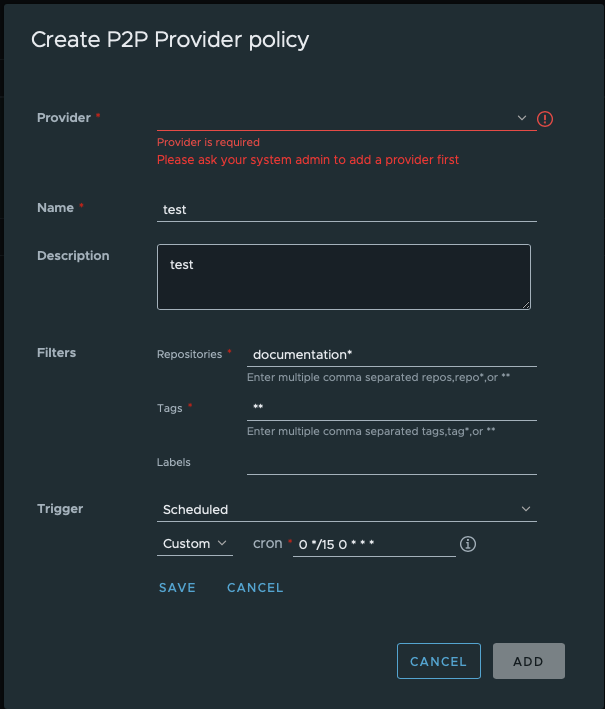
A preheat policy sends images to a provider — a Dragonfly or Kraken instance. A project cannot preheat until at least one provider instance exists, and only a system administrator can register one. If none exists, the policy form shows Please add a provider first with a link to the admin page. Registering a provider instance is a system-administrator task, described in P2P Preheat distribution.
Create a New P2P Preheat Policy
- Inside a project, go to the P2P Preheat tab;
- Click + NEW POLICY to open the Create P2P Provider policy form;
- Fill in the form:
- From the Provider dropdown, select a registered instance;
- Enter a Name, and a Description if you want one;
- Set the Filters (see below);
- Choose a Trigger (see below);
- Click ADD to create the policy.
Filters for P2P Preheating
You can set which images should be announced on the network by using:
- repository names;
- image tags;
- image labels.
Filter by Repository
- To select all repositories in the project, enter a double start/asterisk (**);
- The same effect will be achieved if you type the project name with only one star at the end:
project*;
- The same effect will be achieved if you type the project name with only one star at the end:
- To select certain repositories, type in a repository name with a star at the end of it;
- To enter multiple repositories, separate the entries with commas:
test*, test_slack*.
Filter by Tags
- To select all tags in the project, enter a double start/asterisk (**);
- To select tags matching a string pattern use this method;
- To enter multiple tags, separate the entries with commas:
test*, test_slack*.
Filter by Labels
To filter by labels, you need to put their complete names. To use more than one label, separate them by comma.

If you put more than one label into your preheat policy, only the images that have all these labels will be preheated.
Triggers for P2P Preheating
Even if you set the filters, the preheat will only happen if a trigger fires. You can set the type of such trigger for each preheat policy. The first two are disconnected from the events occurring in your project. The third one is bound to such events.
Manual Preheat trigger
It is not an actual trigger, you will need to execute the policy manually every time you need to run a preheat. To do this, after creating the policy, still in the P2P Preheat tab
- Select a policy;
- Click Action;
- Click Execute.
Scheduled Preheat
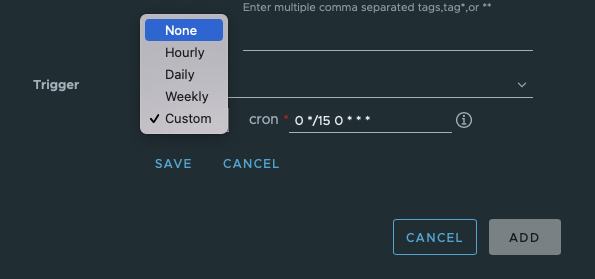
Regardless of whether new images were pushed, the preheat runs only on the schedule you set. * You can select between a simple schedule, based on a time interval, or create your custom schedule using CRON format
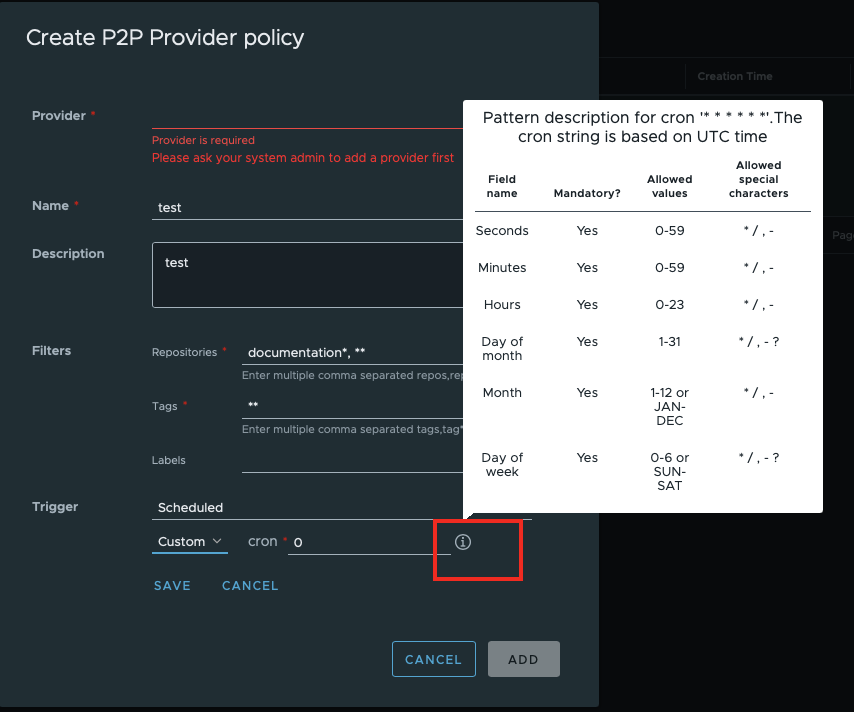
Hover over the i icon to display our CRON cheatsheet.
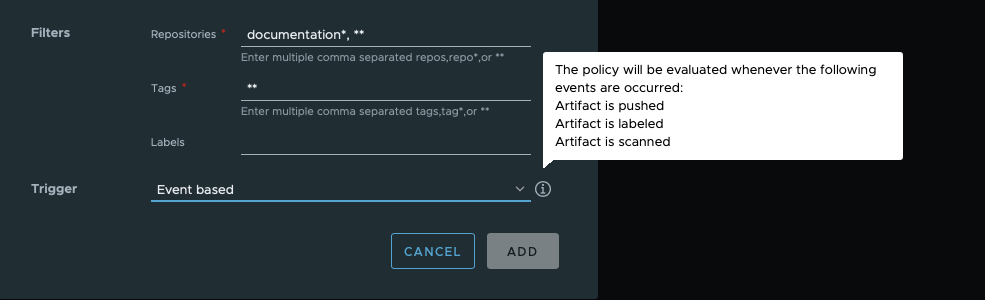
Event-Based Preheat Trigger
If you select this type of trigger, the policy will be executed every time one of the following happens to an artifact/image:
- An Artifact is pushed;
- An Artifact is labeled but not when a label is removed;
- An Artifact is scanned but not when the scan failed.