Filter and Manage Artifacts
A repository can hold hundreds of artifacts, and you usually want to work on a few of them. Filter the list first, then label or delete what is left: a bulk action applies to the artifacts the filter shows.
Filtering Artifacts
You can filter artifacts in the repository using the magnifier in the top right corner of the table.
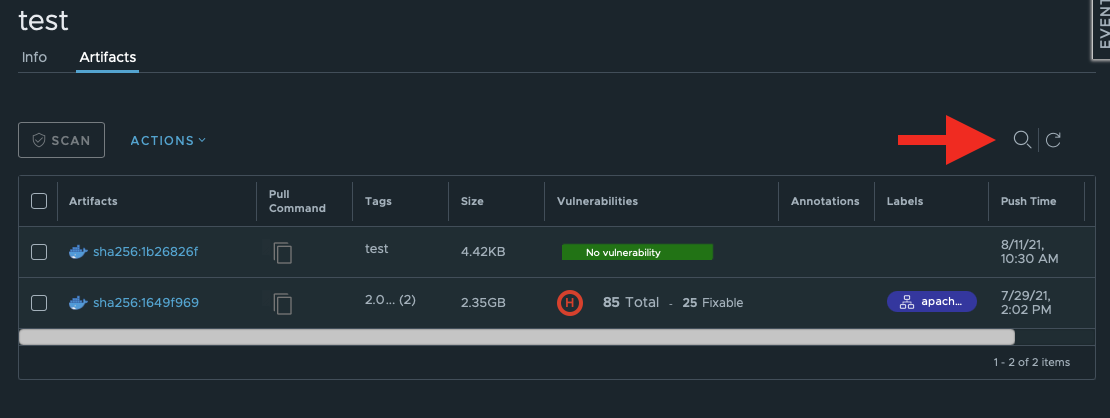
Click on it to access different filtering options.
Filter Artifacts by Type
You can restrict the artifacts overview to a specific type by selecting one of the types in the dropdown:
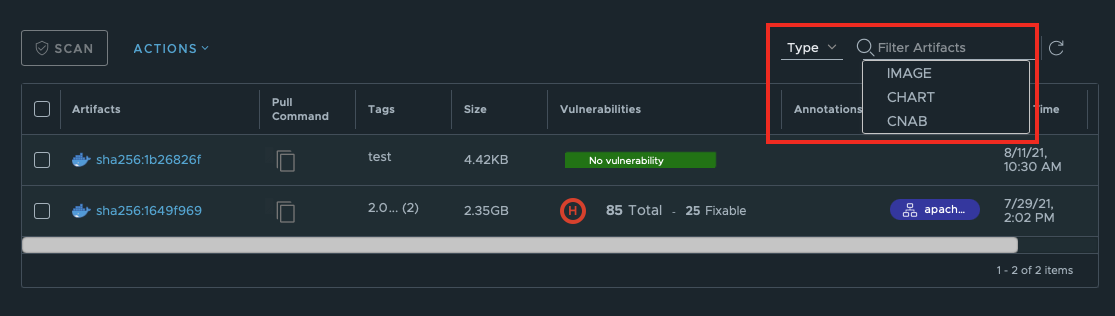
Filter Artifacts by Tags
You can display only tagged or untagged images.
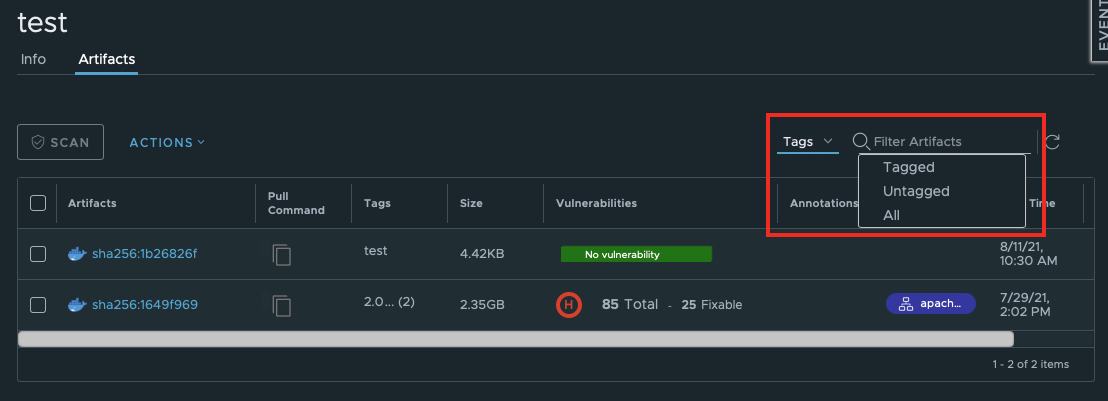
Filter Artifacts by Label
You can display only artifacts that have the same label.
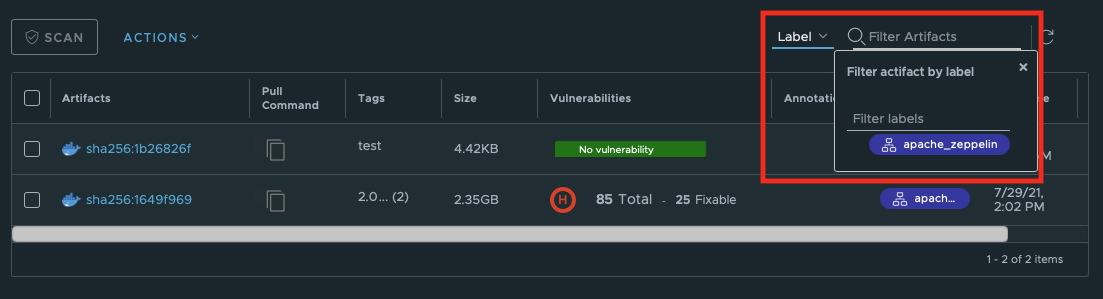
You can select more than one label in this operation.
Managing Artifacts
In the artifacts overview, a few basic operations with artifacts are available.
Every time you need to perform one of them:
- Tick the checkbox next to the artifact;
- Click Actions:
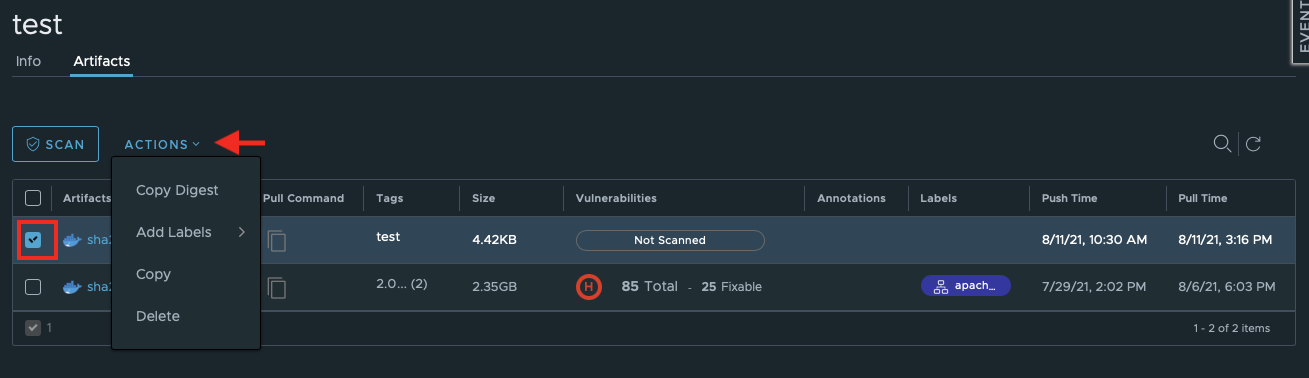
Per-Item Actions
These kinds of actions can only be applied to one artifact at a time.
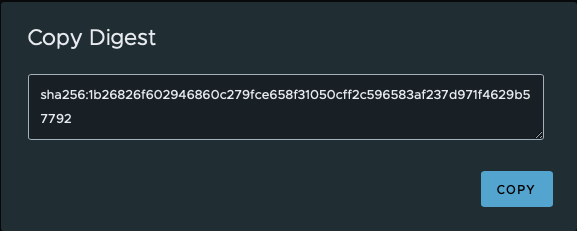
Copy Digest
This button will open another dialogue window where you can copy the digest to clipboard.
Add Labels
Labels are another way to add some short information to your artifacts to sort them later or to make them more eye-catching in the overview.
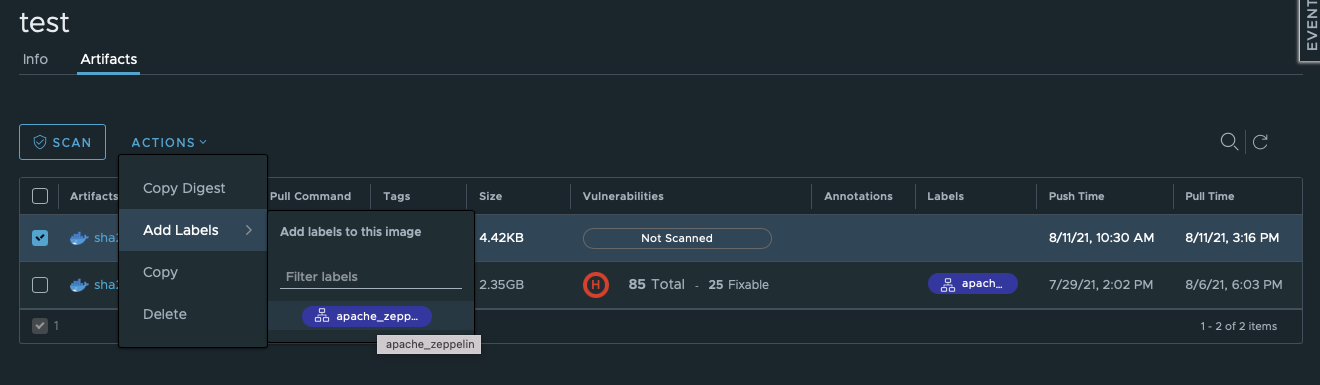
Labels must be added to the project by the project administrator as described here.
Bulk Actions: Delete or Scan Artifacts
These actions can be applied to more than one artifact at a time.

To scan images, you need at least the project administrator privileges.