Garbage Collection and Terminal Deletion of Images
Deleting an artifact removes it from the list, and its files stay on disk until you clear them. Run a garbage collection to free that storage. You can do it once or on a schedule, and a dry run shows what would go before anything is deleted.
What Garbage Collection does
A simple delete operation is not enough to remove images – to be precise, their blob files – from the system. When you use a delete button on the artifacts overview page inside a repository, it simply deletes the corresponding item from the GUI. It means that simple deletion does not clean up your storage, and you may be hitting your project quotas even if you do not see a lot of artifacts in there.
To remove blob files from the system and make some space in your repository, you need to perform an operation known as garbage collection.
Special Handling
Handling Untagged Artifacts
When you remove a tag from the image, you hide a layer associated with the tag from the Container Registry GUI. The result of the untagging is equal to deletion and, as in the case of deleting an artifact, it does not remove the blob from the system.
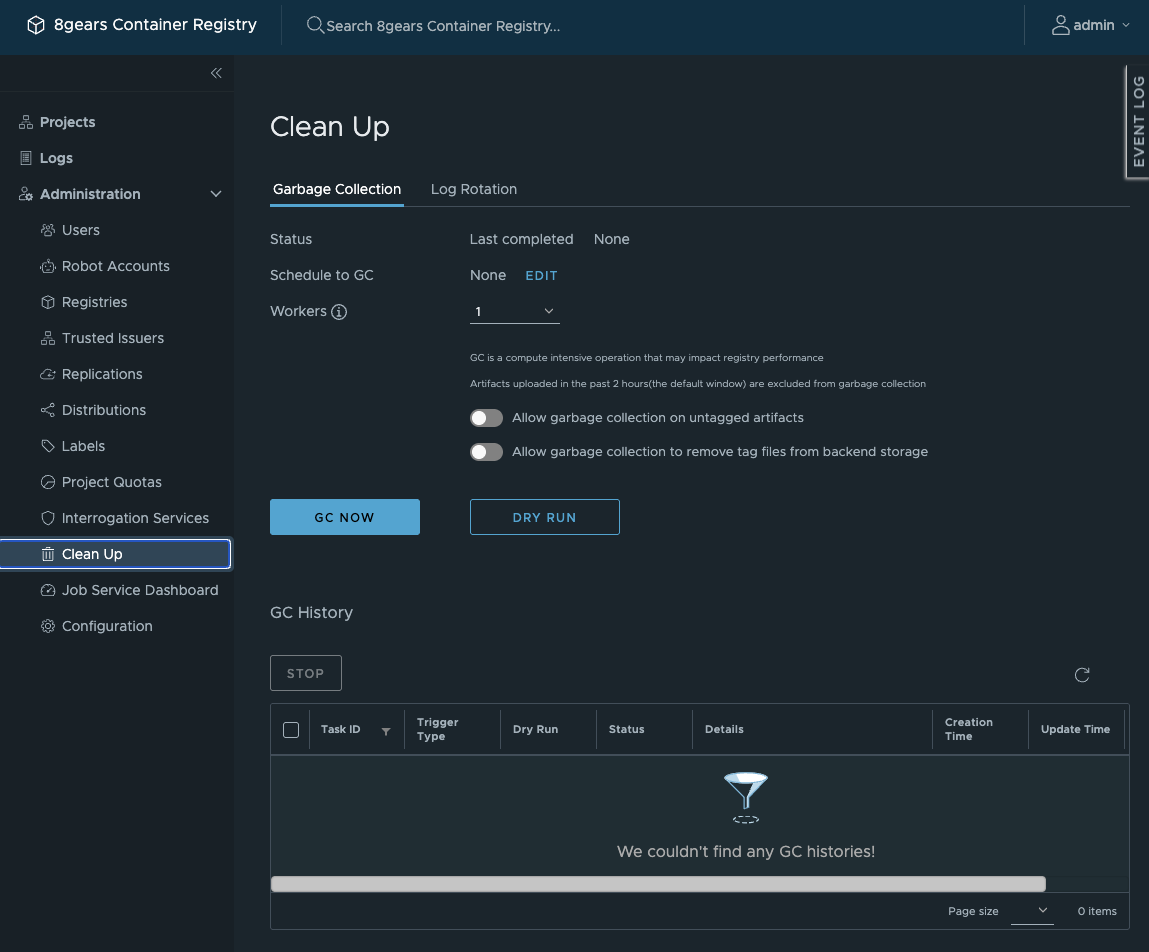
Independently of the method you select for garbage collection, use the Allow garbage collection on untagged artifacts toggle to include untagged artifacts in the deletion:
Handling Images That Are Still Uploading
Since some images may take time to upload, there is a mechanism to prevent them from unintentional removal. Any garbage collection operation (including the dry run) only covers images that were not uploaded within the previous two hours.
Run Garbage Collection
To access it:
- Expand Administration in the navigation tab;
- Click Clean Up;
- Open the Garbage Collection tab.
Clean Up also holds a Log Rotation tab, for purging old audit-log records — see Manage Audit Logs.
The Garbage Collection tab has two more controls that shape the run:
Workers — how many parallel workers the job uses, from 1 to 10 (default 1). More workers finish sooner but put more load on the registry.
Allow garbage collection to remove tag files from backend storage — also removes the tag files themselves from backend storage. The Allow garbage collection on untagged artifacts toggle described above is set here as well.
Use the GC Now button to run a real garbage collection.
You can access the History tab to monitor the execution and then look into the log file when the job is finished.
Garbage Collection Dry Run
Garbage collection takes some time and computing capacity. Besides, since some blob files may be shared between artifacts with identical layers, this operation brings some complexity with it. As a result, a running garbage collection may prevent users from working with your repository normally.
For this reason and to avoid losing data that you may still need, we recommend performing a test execution first: a dry run.
- Use the Dry Run button to initiate it and wait for the results to appear
Schedule Garbage Collection
To schedule a garbage collection:
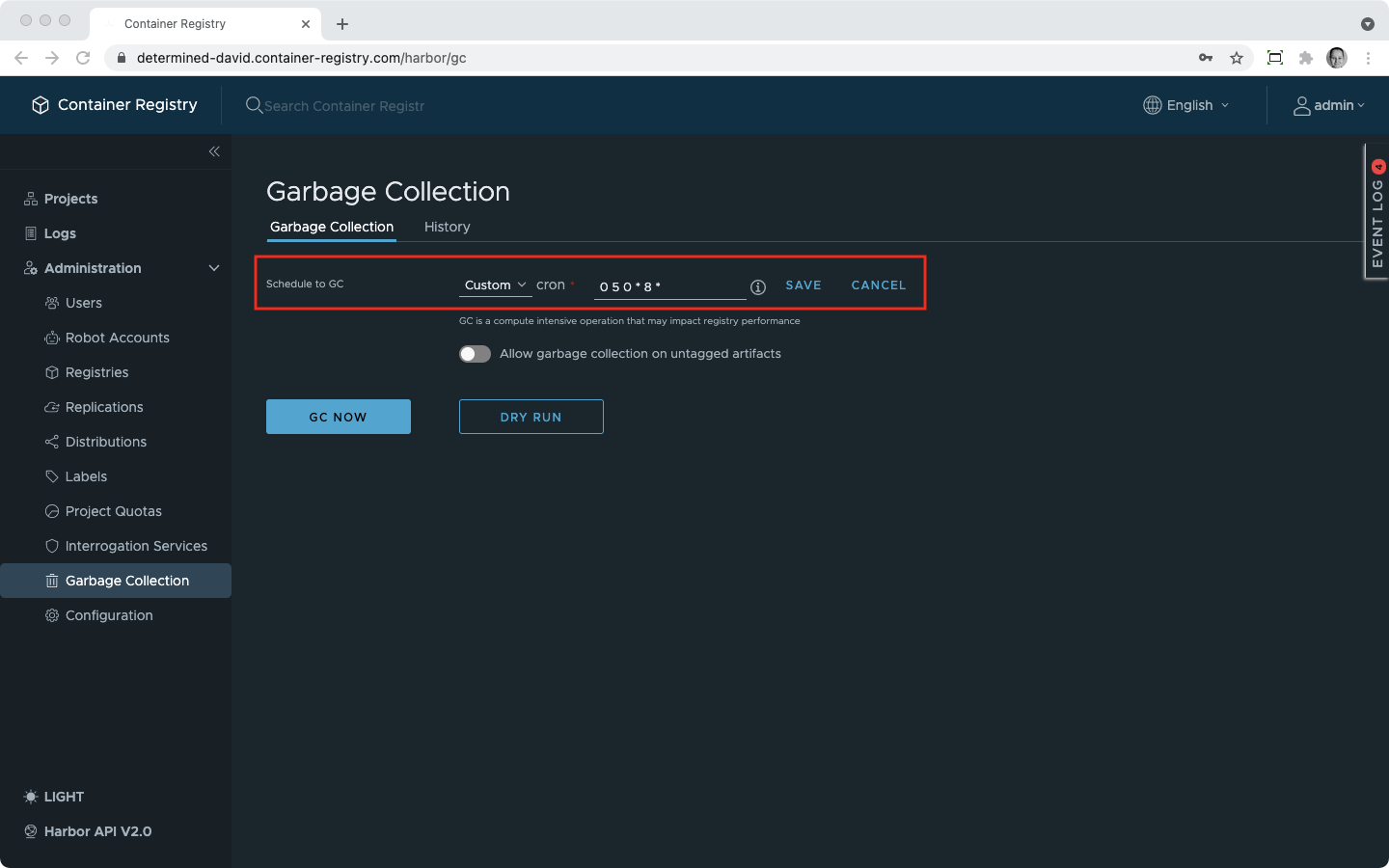
- Click on Edit next to Schedule to GC;
- Select a schedule or type in a CRON-formatted schedule;
- Hit Save.
Access Garbage Collection Log Data
The garbage collection history is accessible on the bottom of the page.
- Find the run
- Click on the “Logs” icon in the last column
- Copy-paste logs into a file and save

Example logs:
2021-09-08T15:50:18Z [INFO] [/jobservice/job/impl/gc/garbage_collection.go:145]: Garbage Collection parameters: [delete_untagged: false, dry_run: true, time_window: 2]
2021-09-08T15:50:18Z [INFO] [/jobservice/job/impl/gc/garbage_collection.go:155]: start to run gc in job.
2021-09-08T15:50:18Z [INFO] [/jobservice/job/impl/gc/garbage_collection.go:411]: artifact trash candidates.
2021-09-08T15:50:18Z [INFO] [/jobservice/job/impl/gc/garbage_collection.go:413]: ID-1 MediaType-application/vnd.docker.container.image.v1+json ManifestMediaType-application/vnd.docker.distribution.manifest.v2+json RepositoryName-library/gc_test Digest-sha256:1b26826f602946860c279fce658f31050cff2c596583af237d971f4629b57792 CreationTime-2021-09-08 15:50:13
2021-09-08T15:50:18Z [INFO] [/jobservice/job/impl/gc/garbage_collection.go:203]: no need to execute GC as there is no non referenced artifacts.
2021-09-08T15:50:18Z [INFO] [/jobservice/job/impl/gc/garbage_collection.go:174]: success to run gc in job.
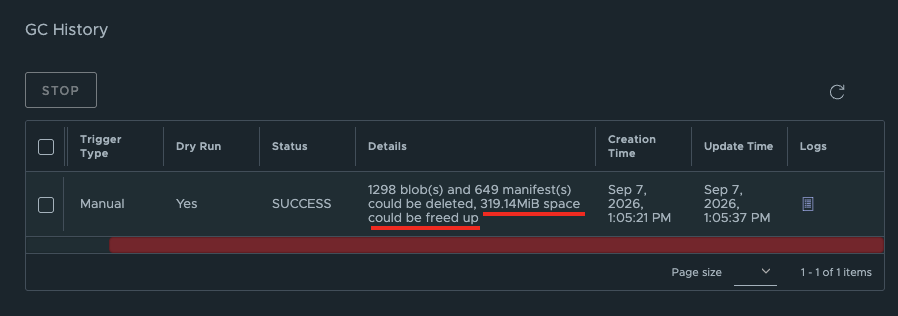
You can also see how much space will be freed after the execution in the “Details” column: