Proxy Cache Projects
Docker Hub applies rate limits, and every pull your workloads make counts against them. Set up a proxy cache project and point your clients at it. They pull through Container Registry, which keeps a copy of each image and serves it from there next time.

- Proxy cache projects are only for pulling images.
- By granting users access to a proxy cache project, you automatically grant them access to the canonical registry, and they can pull any images from there.
Prerequisites
- You must be a system administrator. Project administrators cannot create proxy cache projects.
- The upstream registry must already exist as an endpoint. The project-creation dialog only lets you select an existing endpoint — it does not create one. Add it first under Administration > Registries, as described in Endpoints for Replications and Proxy Cache. For which third-party registries can be proxied, see Supported Non-Harbor Registries.
Step 1: Create a project
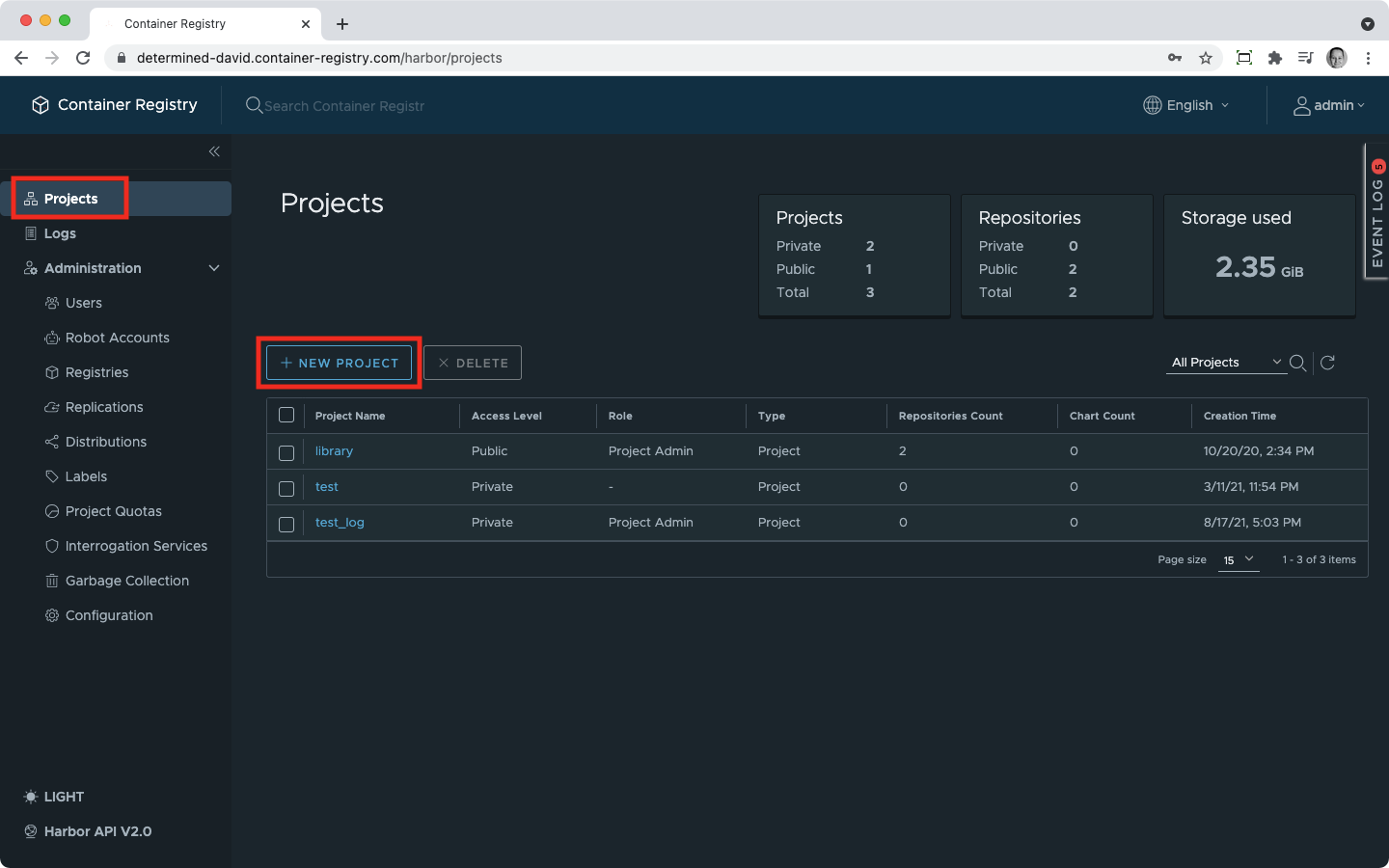
- In the navigation, click Projects, then + New Project.
Step 2: Make it a proxy cache
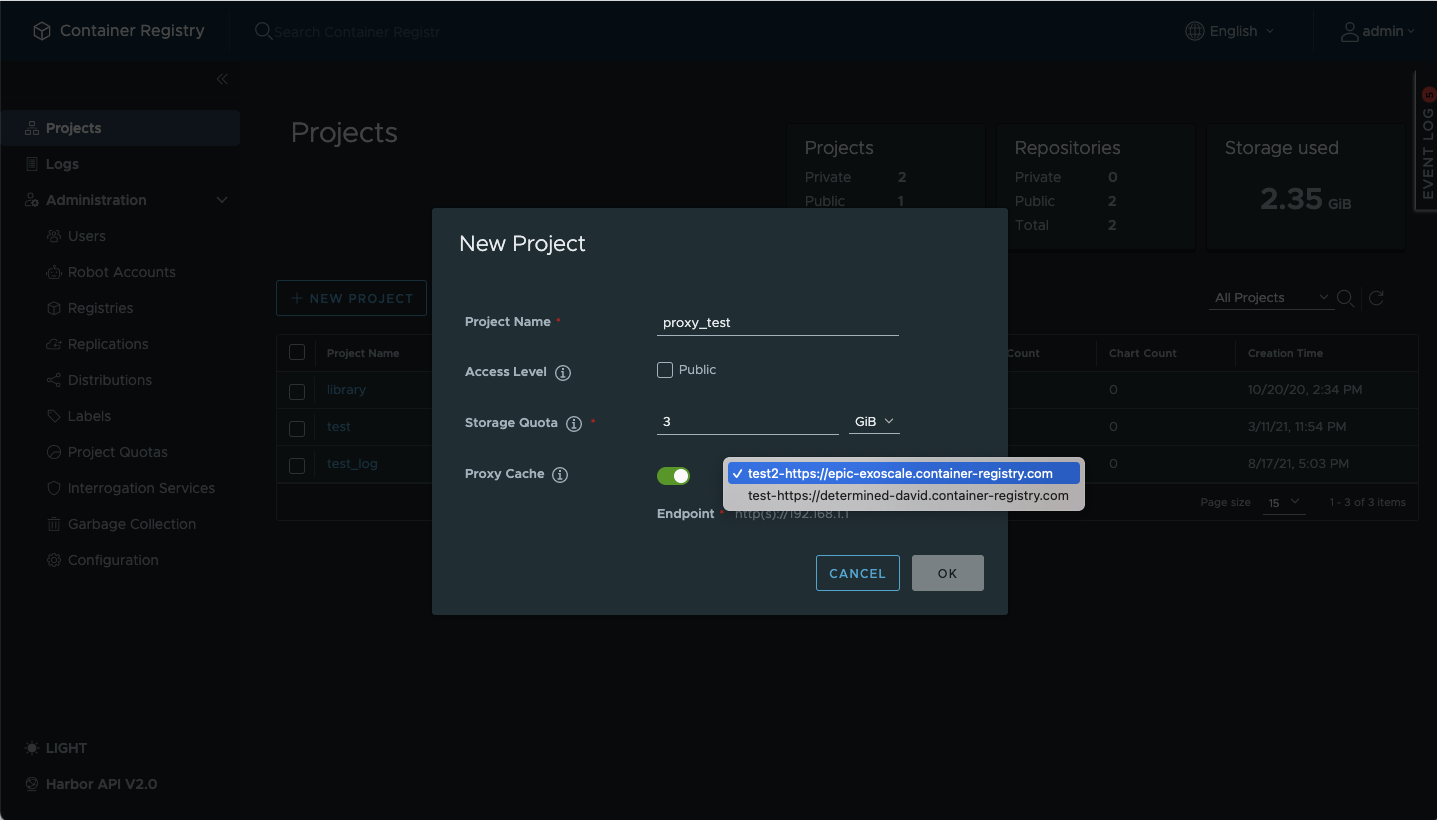
- In the dialog, turn on the Proxy Cache slider.
Step 3: Choose the endpoint
- Select your upstream registry from the endpoint dropdown. This dropdown lists the endpoints that already exist — you are choosing one, not creating it. If the dropdown is empty, no endpoint has been added yet: create one under Administration > Registries first (see the prerequisite above), then return to this dialog.
- Finish creating the project.
Step 4: Restrict which repositories are cached (optional)
By default a proxy cache project mirrors every repository its users request from the upstream registry. To narrow this to a chosen set of repositories, set a repository filter: a pull for any repository outside the filter is rejected before Container Registry contacts the upstream. The filter is enforced on manifest, blob, and tag-list requests.
A repository filter has two parts: a pattern and a match kind. Set them in the web console, or with the project metadata API. Both write the same two settings, so use whichever you prefer.
The filter has two match kinds:
- Doublestar (the default): selects repositories with a glob pattern.
- Regex: selects repositories with a regular expression.
For how to write a pattern in either kind, see Filtering Rules Syntax.
Leave the pattern empty to cache every repository. A bare comma-separated list of paths matches nothing and denies every pull.
The pattern is validated when you set it. An unparseable regex, or a match kind other than doublestar or regex, is rejected with a 400 Bad Request and the filter is left unchanged.
Set the filter in the web console
The Repository filter field appears in the New Project dialog and, after the project exists, in the project’s Configuration tab.
- Enter the pattern in Repository filter, for example
library/**. - Choose the match kind: Doublestar or Regex.
- Save the project, or save the configuration on the Configuration tab.
Set the filter with the project metadata API
The filter is two project-metadata keys:
| Key | Purpose |
|---|---|
proxy_cache_filter_pattern | The repository-name pattern to match. Empty by default. See Filtering Rules Syntax for how patterns are written. |
proxy_cache_filter_kind | The match kind, doublestar or regex. Optional; defaults to doublestar when omitted. |
Send both keys to the project’s metadata endpoint. This example limits a proxy of Docker Hub to repositories under library/:
curl -u <username>:<password> -X POST \
  "https://<registry-host>/api/v2.0/projects/<project-name>/metadatas" \
  -H "Content-Type: application/json" \
  -d '{"proxy_cache_filter_pattern": "library/**", "proxy_cache_filter_kind": "doublestar"}'
This same request also updates the filter after the project exists:
curl -u <username>:<password> -X PUT \
  "https://<registry-host>/api/v2.0/projects/<project-name>/metadatas/proxy_cache_filter_pattern" \
  -H "Content-Type: application/json" \
  -d '{"proxy_cache_filter_pattern": "library/**"}'
Step 5: Verify the endpoint and the filter
- Confirm the upstream endpoint is reachable: open Administration > Registries, select the endpoint, and check that its status is healthy (or test the connection when editing it).
- If you set a filter, read the metadata back and confirm both keys hold the values you set:
curl -u <username>:<password> \
"https://<registry-host>/api/v2.0/projects/<project-name>/metadatas"- Pull a repository that matches the filter and confirm it succeeds; pull one that does not and confirm the request is denied. With no filter set, any repository the upstream serves should pull.
Step 6: Update your docker pull commands to use the proxy
To use the proxy cache, your clients must request images from the proxy project instead of the upstream registry directly. Edit your docker pull commands — and your pod manifests, or whatever you deploy with — to replace the upstream registry and project with your proxy project.
A pulled image takes the shape:
docker pull <registry-host>/<proxy-project>/<repository>:<tag>You do not have to build this string by hand. In the web console, open the repository under your proxy project and use the Pull Command shown for a tag or digest — it is copyable and already carries the correct host and project.
Serve Cached Images When the Upstream Is Unavailable
By default, if the upstream registry is unreachable — or the image has been removed from it — when a pull request arrives, the proxy cache returns an error. You can change this behavior by enabling the local-on-not-found option, which instructs the proxy to serve a locally cached copy of the image instead of failing.
This is particularly useful in air-gapped environments or during upstream outages — any image that was previously pulled through the proxy remains available to your users even when the canonical registry cannot be reached.
To enable it:
- Open the proxy cache project and go to its Configuration tab.
- In the Proxy Cache settings section, enable the Serve stale content when upstream is unavailable option.
- Save the configuration.
Once enabled, pull requests for images that exist in the local cache will succeed even if the upstream registry is offline or unreachable. Pull requests for images that have never been cached will still fail. This option can also be enabled when creating the project.
Enable Proxy for OCI 1.1 Referrer API
OCI 1.1 registries support a Referrers API that allows clients to discover artifacts (such as signatures, SBOMs, or attestations) that reference a specific image or artifact. By default, Harbor does not proxy these referrer API requests to the upstream registry.
If your workflows depend on referrer discovery — for example, when using Cosign for signature verification or supply-chain tooling that queries referrers — you can enable this option to have the proxy cache forward referrer API requests to the upstream registry.
To enable it:
- Open the proxy cache project and go to its Configuration tab.
- In the Proxy Cache settings section, enable the Enable proxy for referrer API option.
- Save the configuration.
Once enabled, Harbor forwards OCI Referrers API requests to the upstream registry. If the upstream registry supports the API, clients receive its referrer results, allowing signature verification and other referrer-dependent workflows to function when pulling images through the proxy cache. This option can also be enabled when creating the project.
Retention Rules for Proxy-Cached Images
Contrary to other solutions, Container Registry won’t create any retention rules for your proxy cache projects automatically. It means that not only the latest but all images will be kept.
If you want unused images to be deleted from time to time, you can create retention rules as described here.