Manage Replication Rules
Create a rule that moves artifacts between registries, then run and maintain it. For what a rule does once it runs, see Replication Rules.
Create or Configure a Replication Rule
Prerequisite
You need at least one endpoint – a registry to push or pull images from – to create a new replication rule.
Steps
- In the navigation, select Administration and then Replications;
- Click + New Replication Rule;
- If you want to edit an existing one, select it for editing as explained below;
- Fill in the form:
- Name should not have any white spaces;
- Description is optional;
- Replication mode:
- Push-based means that you will push images from your current Container Registry instance into a remote one;
- Pull-based means that you will pull images to your current Container registry instance from a remote one;
- Resource filter: in the push replication mode, your current instance is the resource, whereas, in the pull mode, the resource is the remote registry; the resource filter selects which artifacts should be included in the replication:
- Name is the repository name; however, you can include all repositories by specifying in this field only the name of the project or using patterns;
- Tag is the artifact tag;
- Label;
- In the Resource dropdown, you can choose between the artifact type: chart, image, or any artifact.
- Destination/Source registry: you need to specify the remote registry by selecting an existing endpoint from the dropdown;
- In the Destination Namespace you can enter a custom name for the namespace where the artifacts should be pushed; if you leave it empty, the namespace existing in the source will be created in the destination and the artifacts will be stored there;
- In you specify a destination namespace or tag, you will need to select a Flattening rule for them (read more about flattening below);
- Trigger will specify when a replication should run:
- manually: when you start it pro-actively;
- scheduled: the replication runs repeatedly after the same time interval; this interval must be specified using the CRON format;
- event-based runs when an event happens;
- for manual and scheduled triggers, specify if you want the artifacts with the same name to be overridden in the destination;
- for event-based trigger, specify if you want to synchronize delete operations.
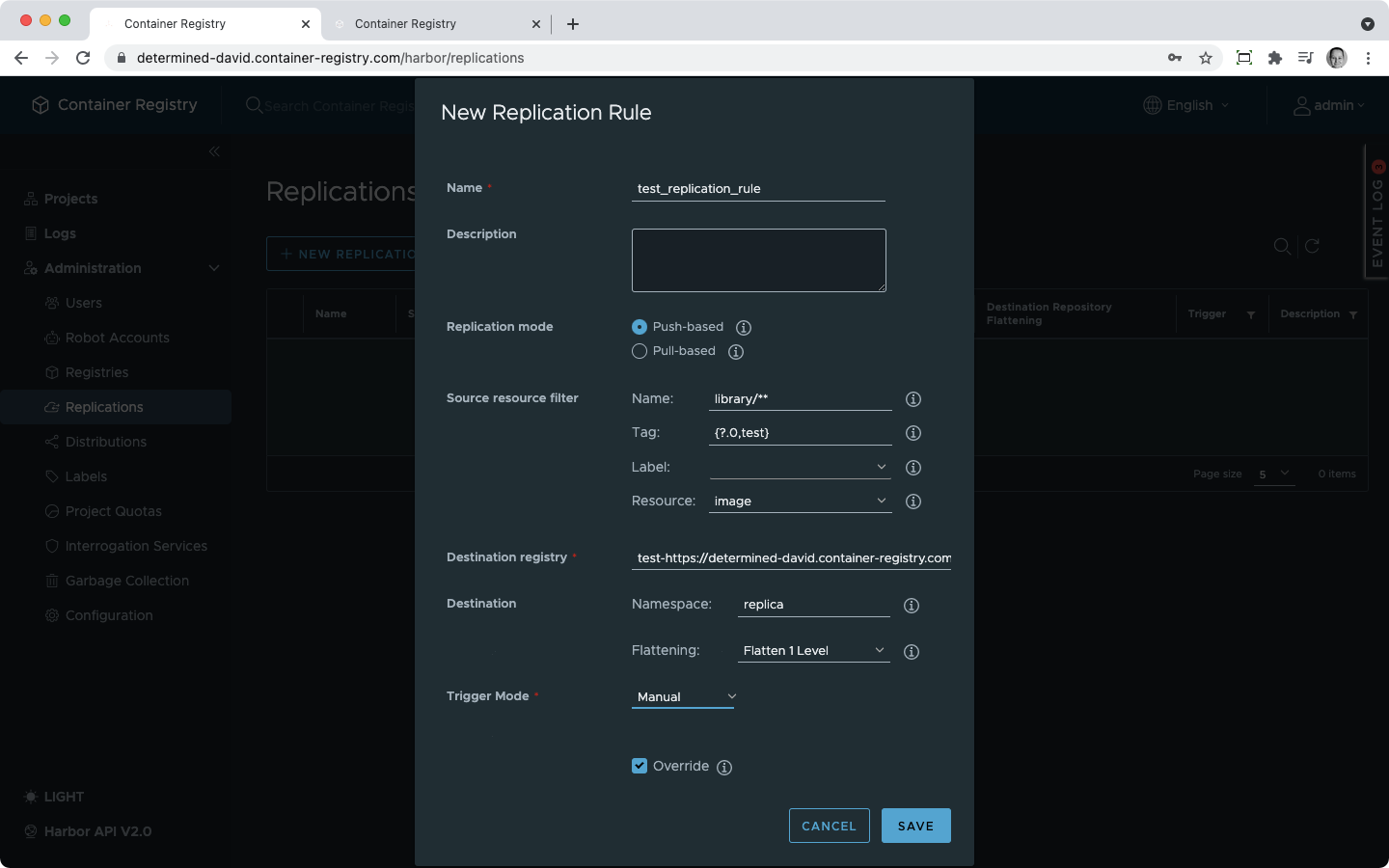

The resource filter is an AND filter. The more conditions you add, the narrow is the selection.
Managing Replication Rules
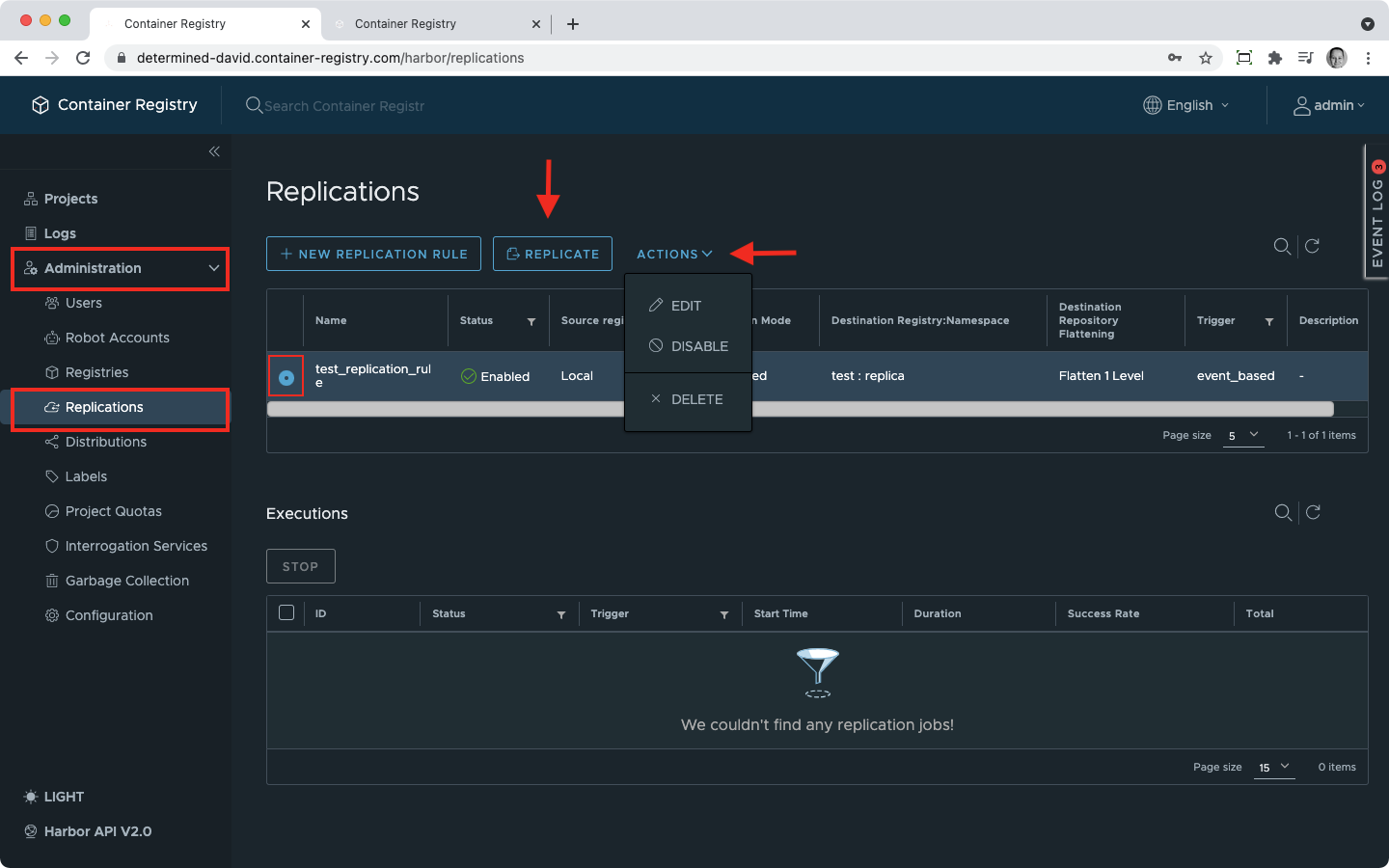
To manage replication rules, select one of them by clicking on the circle next to a rule and then perform one of the following actions using buttons in the replication rules overview.
Run a Replication Manually
The Replicate button will run the selected replication. This is possible for replications with any type of trigger but is the only way to run the replication with the manual trigger type.
Disable or Enable a Replication Rule
Replication rules can be disabled and enabled again if you only want to pause them for a while.
Edit or Delete a Replication Rule
You can delete or edit any replication rule using the Actions button.
If a replication that you want to edit or delete is running at the moment, you will need to wait until all replication tasks are finished successfully. You can check their status as explained below.
Check the Status of Replication Tasks
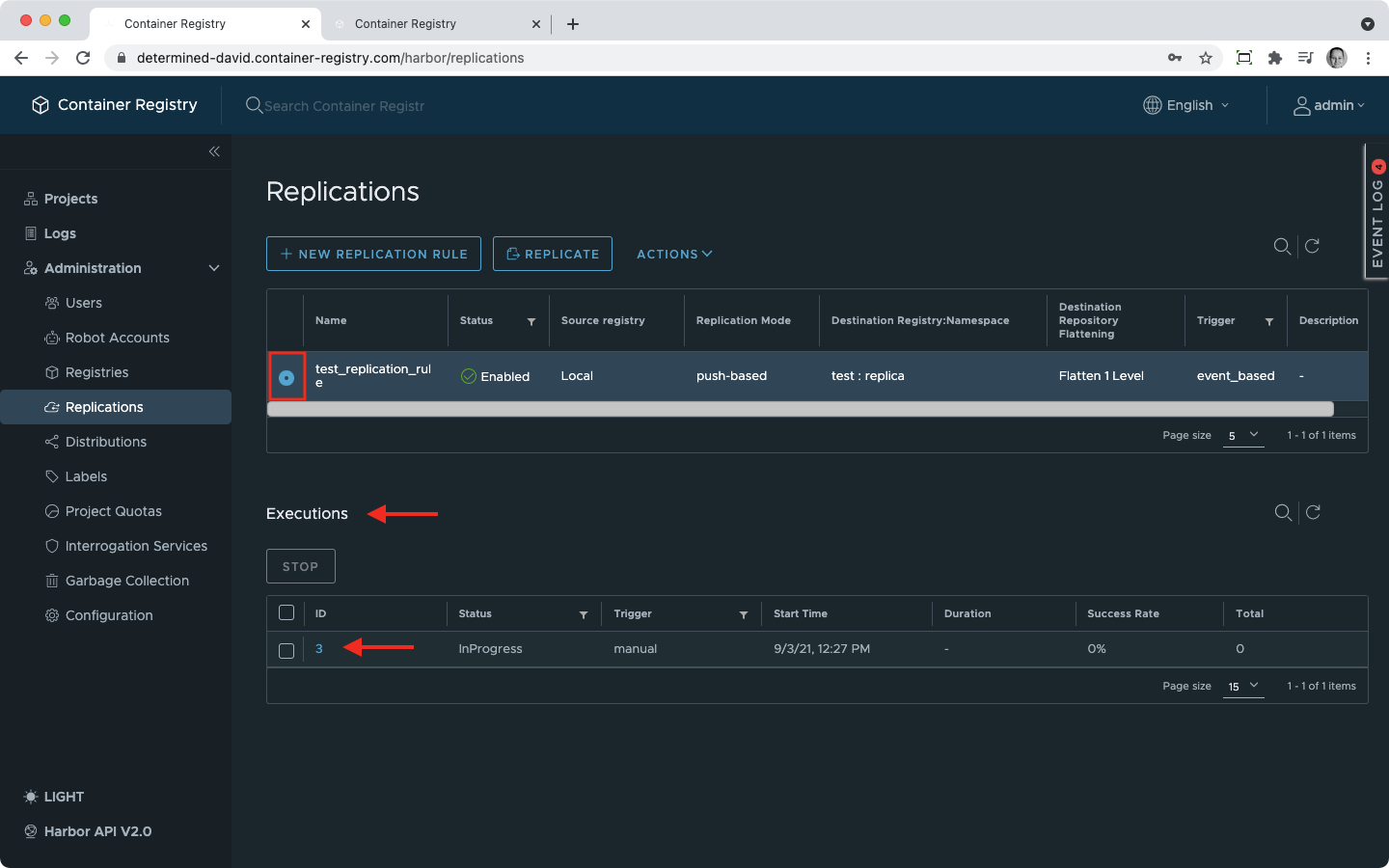
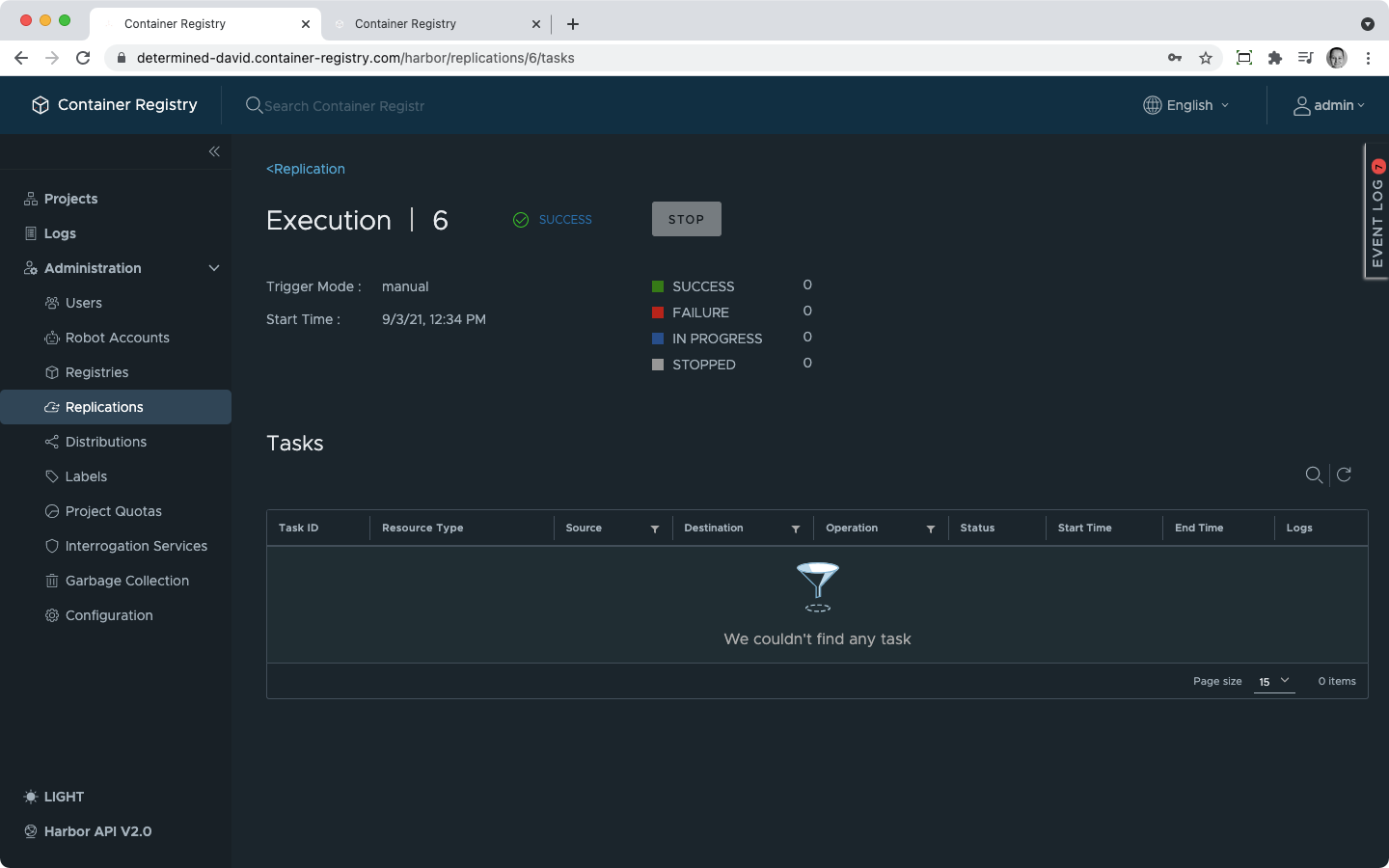
To check the status of all past and present replication tasks, select a replication rule and the list of its executions will appear below. Click on the execution ID and you will be redirected to the overview of the replication tasks for this execution.
Replication Logs
For each replication task, you can access its logs by clicking on the log icon next to the task in the replication task overview.
Stop a Running Replication
To stop a running replication, select a replication rule to display the list of executions. Select the one that is still in progress by using the checkbox and press Stop.
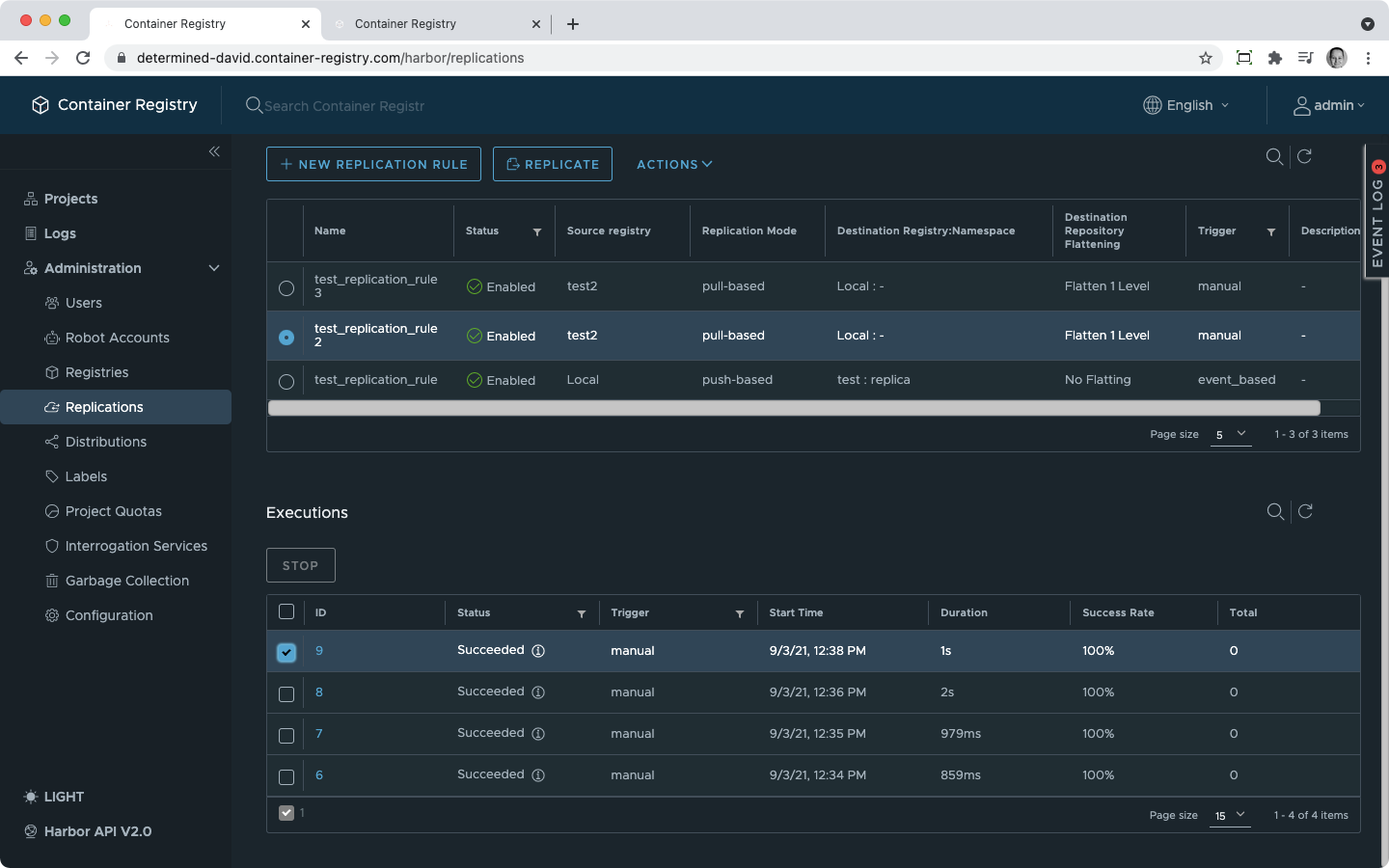 The same button is also available in the replication task overview.