Manage Audit Logs
Audit logs record who acted on the registry and what they changed. This page shows you how to control that record end to end: choose which events are captured, forward them to a syslog endpoint, stop storing them in the database, and purge old entries on a schedule.
Open the Audit Log settings
These steps open the Audit Log configuration page, where you set recording, forwarding, and database storage. Purging old records happens on a separate page, covered in Purge old audit logs below.
- Sign in as a system administrator.
- Go to Administration > Configuration.
- Open the Audit Log tab.
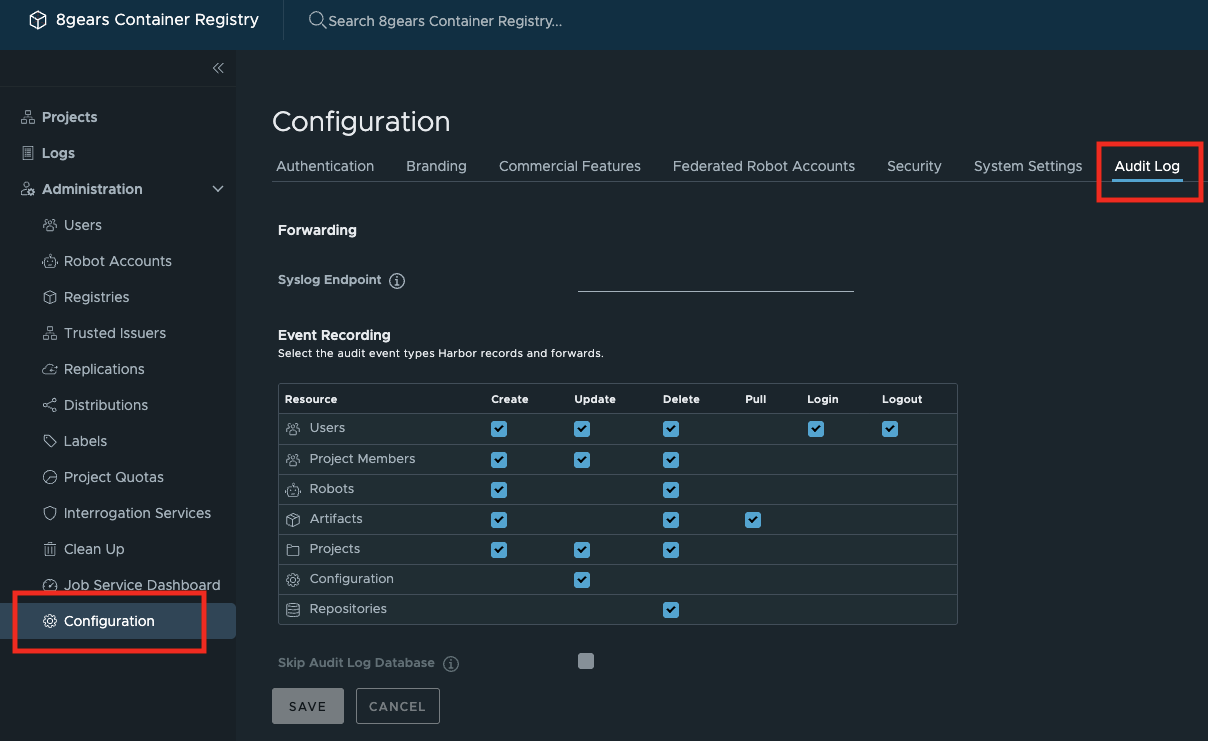
The Audit Log tab sits next to Authentication, Security, and System Settings. In earlier releases these settings were on the System Settings tab. They now have their own tab.
Choose which events are recorded
The Event Recording matrix controls which events Container Registry records. Each row is a resource type. Each column is an action. Each cell is one event type, such as an artifact pull or a project deletion.
The resource types are Users, Project Members, Robots, Artifacts, Projects, Configuration, and Repositories. The actions are the operations that apply to each resource, such as create, update, delete, pull, and login.
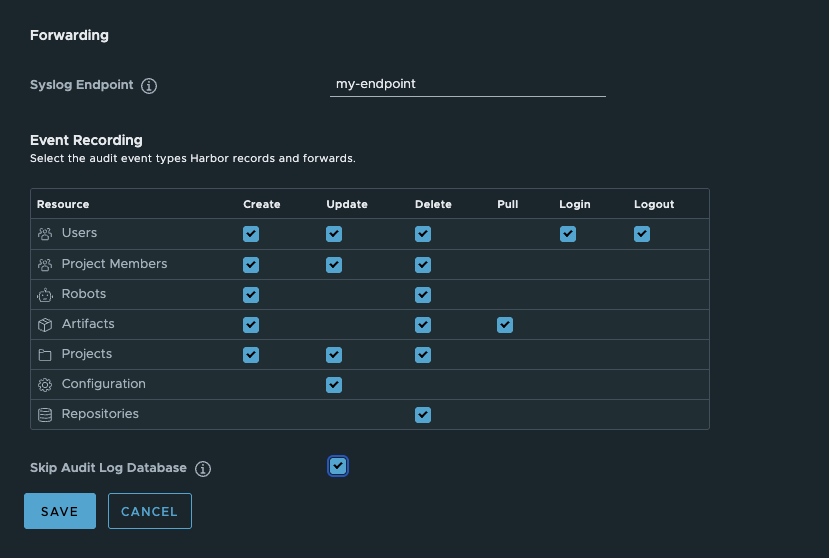
- A checked box records that event type.
- Clear a box to stop recording that event type.
By default every box is checked, so Container Registry records every event type.
To change what is recorded:
- Check or clear the boxes for the event types you want.
- Click SAVE.
Forward audit logs to a syslog endpoint
Forward audit logs to an external syslog endpoint to collect them outside the registry.
- In Audit Log Forward Syslog Endpoint, enter the endpoint. Use the
host:portform, for exampleharbor-log:10514. - Click SAVE.
Container Registry then sends each audit log entry to that endpoint.
Stop writing audit logs to the database (optional)
By default Container Registry writes every audit log entry to its database. If you forward audit logs to a syslog endpoint, you can stop writing them to the database as well.

Skip the database only when you forward audit logs to a syslog endpoint. If you skip the database without forwarding, the audit log is lost.
- Set an endpoint in Audit Log Forward Syslog Endpoint first. Skip Audit Log Database stays disabled until you do.
- Check Skip Audit Log Database.
- Click SAVE.
Container Registry then forwards audit logs to the endpoint only, and does not store them in its database.
Purge old audit logs
Recording settings decide what enters the audit log; they do not remove anything. To keep the database from growing without bound, purge old records on the Log Rotation page.
Open Log Rotation
- Expand Administration in the navigation pane;
- Click Clean Up;
- Open the Log Rotation tab.
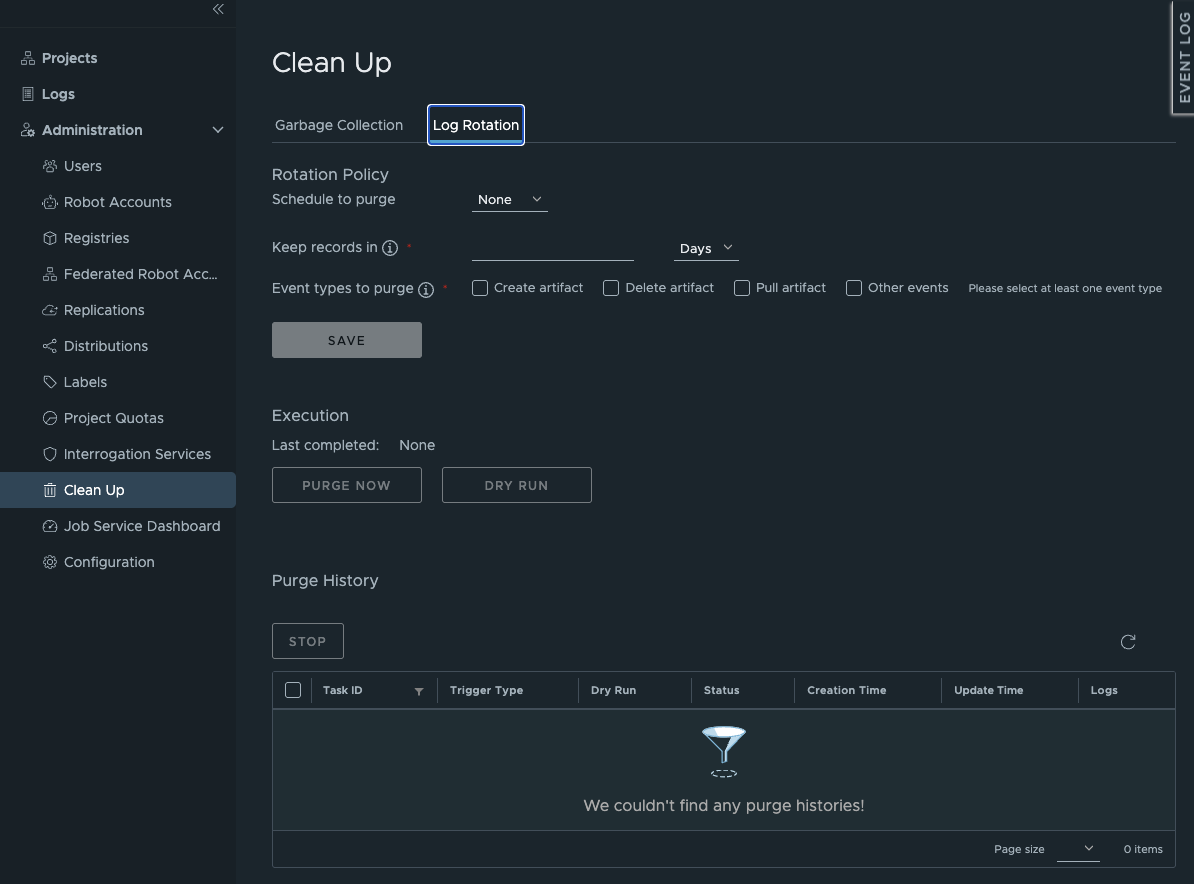
Log Rotation and Garbage Collection are the two tabs under Clean Up. Log Rotation purges audit-log records; Garbage Collection reclaims image storage (see Garbage Collection).
Choose what to purge
- Keep records in — enter how many days to keep. Records older than that are purged.
- Event types to purge — check the record types a run removes: Create artifact, Delete artifact, Pull artifact, and Other events. Select at least one; SAVE stays disabled until you do.
- Click SAVE.
Run or schedule a purge
- Use PURGE NOW to purge immediately, or set Schedule to purge to run it on a schedule.
- Use DRY RUN first to see what a purge would remove without deleting anything.
- The Purge History grid lists each run (Task ID, Trigger Type, Dry Run, Status, Creation Time, Update Time, Logs); open a run’s Logs to see what it removed, or use STOP to halt a run in progress.
Verify
- Reopen the Audit Log tab and confirm each field holds the value you set.
- If you forward to a syslog endpoint, perform an action such as pushing an artifact, then confirm the entry arrives at the endpoint.
- Reopen the Log Rotation page and confirm the Purge History grid shows your run.
To read the recorded audit logs in the web console, see Working With Logs.